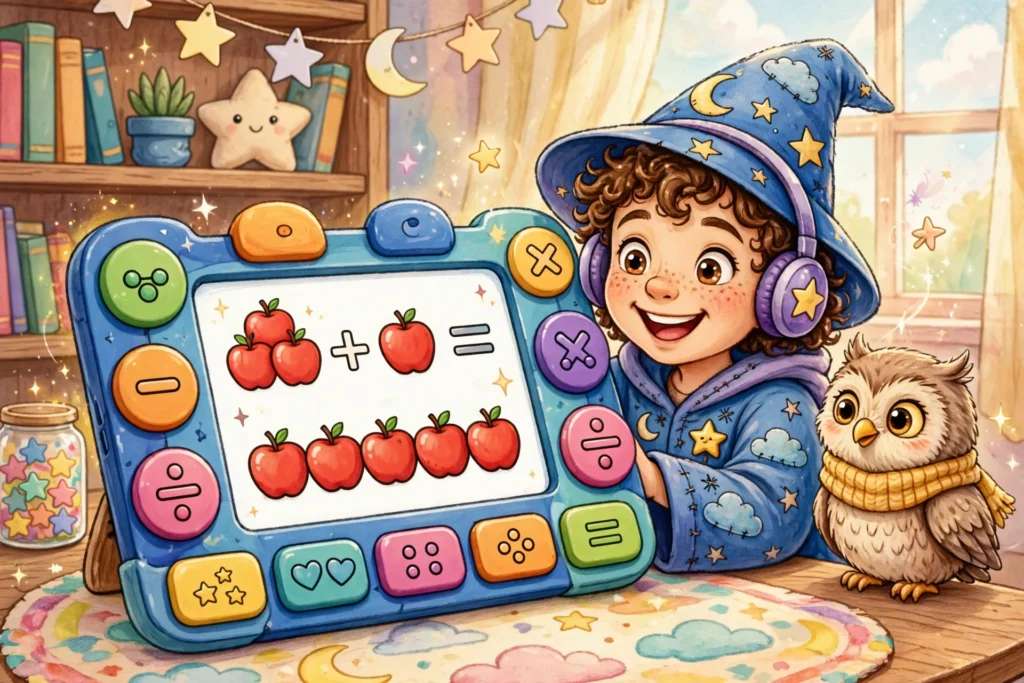
Prodigy Math can work well for children with different needs, but only if you set it up for the child in front of you. The game includes read aloud, hints, short video explanations, and digital manipulatives, and its questions adapt to the child level, so a child who reads slowly or struggles with one topic is not locked out by the game itself. There is no single accessibility switch to turn on, and the game does not advertise a built in screen reader mode or a large text mode, so the honest answer is that Prodigy helps many children, and some children will still need device settings and adult help beside them. This guide shows what the game already offers, how to turn it on, and where to be careful.
What Prodigy already offers
The strongest accessibility feature in Prodigy is that the questions adapt. When a child answers wrong, the next questions get easier, and when a child answers right, they get harder, so the game meets the child at their level instead of forcing one level on everyone. On many questions the child can also get help: a read aloud option reads the question out loud, a hint gives a nudge toward the method, a short video explains the idea, and digital manipulatives let the child move blocks or counters on the screen instead of working only from words and numbers. These supports are part of the game and do not need a membership. For a child who is behind in math rather than blocked by access, the signs and the plan are covered in Prodigy for struggling math students.
The game also keeps the social side safe and simple. Children cannot share personal information or send free text messages in the game, and the chat is limited to pre written phrases. That matters for children who find open chat confusing or risky, because the game stays a game and does not become a social network. The trade off is that the game is busy: a fantasy world with pets, battles, quests, and rewards is a lot of movement and colour, and some children will find that distracting rather than motivating.
Turn on read aloud and hints
Start a battle and look for the speaker or read aloud button on the question screen, and the hint button beside it. Tap the speaker before the child reads, so the question is heard as well as seen, and teach the child to tap the hint before guessing, not after getting the answer wrong. If a question offers a video, watch it together the first few times, so the child learns that the video is help, not a punishment for being wrong. Do this for the first week of play, and then let the child use the buttons on their own. A child who knows where the help lives will use it, and a child who does not know will sit stuck and guess.
Set the level right for the child
The single most useful accessibility step is setting the right level. If the questions are too hard, no amount of read aloud will help, because the child is fighting the math and the reading at the same time. A parent or teacher can change the grade level in the account settings, and a teacher can set specific topics in the dashboard, so the game practises only what the child is ready for. Set the level one step below the child school grade to start, and raise it when the child is answering most questions correctly. The steps for changing the level are in How to change grade level in Prodigy, and the teacher side of the setup is in Prodigy Math for new teachers.
Device settings that help
When the game itself does not offer a setting, the device does. On an iPad or iPhone, the Accessibility section in Settings can enlarge text, increase contrast, reduce motion, and turn on VoiceOver or the speak screen feature, which reads what is on the screen. On Android, the Accessibility section offers large text, high contrast, and a screen reader too. On a Chromebook or computer, the browser can zoom the page, and the operating system has its own magnifier and high contrast options. These are device features, not Prodigy features, so they work across the whole game, but they can also make the game layout look crowded, so test them in one battle before a full session. A larger screen also helps: a tablet or laptop is usually easier than a phone, because the question text and the buttons are bigger.
Where Prodigy falls short
Be honest about the gaps before you rely on the game. Prodigy does not advertise a screen reader mode or a large text mode inside the game, and the busy fantasy world, with moving characters, flashing rewards, and membership prompts, can overwhelm a child who needs a calm screen. The game also needs an internet connection, so it will not work offline, and it cannot show a child working, so a correct answer does not prove the child used the right method. For a child with significant vision loss, a screen reader user, or a child who needs a very plain interface, Prodigy may not be the right tool on its own, and a simpler practice app or paper practice may serve them better. Try one short session first, watch how the child copes, and decide from what you see, not from a feature list.
Frequently asked questions
Does Prodigy Math have text to speech?
Yes, in the form of a read aloud option on questions, which reads the question out loud. It is offered on many questions, not on every screen in the game, so check it in a real battle before you rely on it.
Is Prodigy good for dyslexia?
It can help, because the read aloud feature, the hints, and the video explanations reduce the reading load, and the questions adapt to the child level. It is not a reading intervention, so pair it with reading support and keep sessions short.
Can a blind child play Prodigy Math?
Prodigy does not advertise a built in screen reader mode, and the game is visual, with a fantasy world, battles, and on screen buttons. A screen reader user will likely find it hard to play alone, and should try it with an adult beside them first.
How do I make Prodigy easier for my child?
Lower the grade level by one step, set only one or two topics at a time, and teach your child to use read aloud and hints before guessing. Short sessions of about 15 minutes help more than one long session.
Does Prodigy work with a screen magnifier?
The device magnifier and zoom features work across the game, because they are part of the device, not the game. Test them in one battle first, because zooming can crowd the battle screen on a small tablet or phone.
Related guides
- Prodigy for struggling math students
- How to change grade level in Prodigy
- Prodigy Math for new teachers
This site is an independent guide. It is not the official Prodigy site, and it is not affiliated with Prodigy Education.
Pingback: Prodigy Math for special education - Prodigy Guide